You have one VPS, five apps, and one port 443. The first app gets the port, the second one gets a README full of excuses, and by the third you are editing Nginx server blocks by hand and running certbot in a cron job you half remember writing. A Traefik reverse proxy ends that routine: it watches Docker, notices new containers, routes domains to them, and fetches a Let’s Encrypt certificate for each one — no reload, no manual certbot run, no config file per app.
This guide sets up Traefik v3 on a VPS with Docker Compose, from an empty server to a working edge proxy with automatic HTTPS, a password-protected dashboard, and wildcard certificates. It assumes you already have Docker and Docker Compose v2 installed, and it builds on the blog’s Caddy reverse proxy guide and Nginx reverse proxy guide. Everything below was verified against the official Traefik documentation and the project’s release notes on 22 November 2026. The current stable release is v3.7.19 (13 November 2026).
By the end you will have Traefik on ports 80 and 443, HTTP redirecting to HTTPS, a test service live on its own subdomain with a valid certificate, a dashboard locked behind basic auth, and the two middlewares every self-hosted service should carry.
What a Traefik reverse proxy actually does
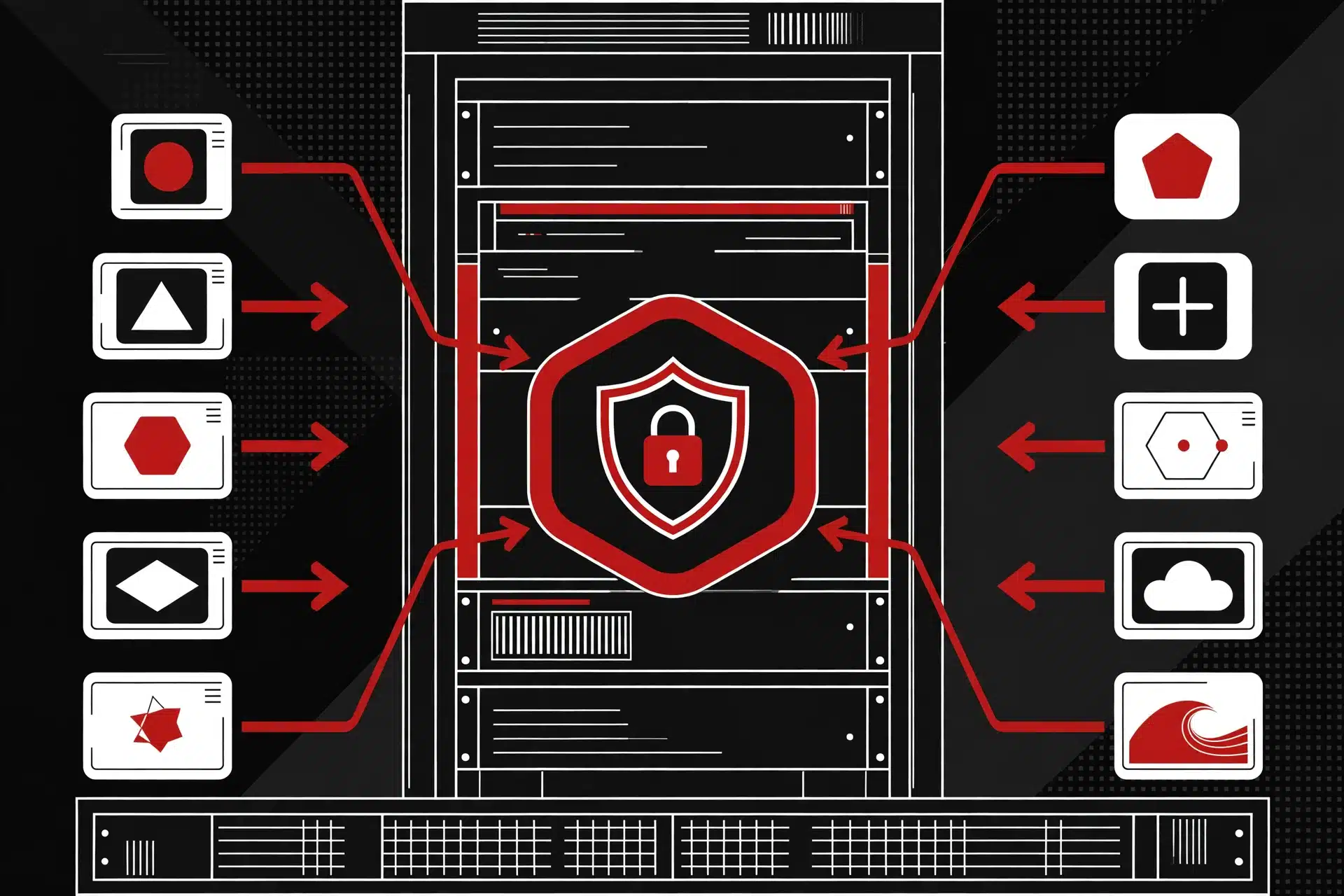
A reverse proxy sits in front of your apps and owns ports 80 and 443. Every request arrives at the proxy, which reads the Host header and forwards the request to the right container. Traefik’s difference from Nginx and Caddy is where its configuration comes from: instead of a file you edit, Traefik reads labels on your Docker containers and rebuilds its routing table the moment a container starts or stops. Add three labels to a container and it is live on its own subdomain with HTTPS within a minute. Stop the container and the route disappears.
Four concepts describe everything Traefik does, and they come straight from the project’s own documentation:
- Entrypoints are the doors into Traefik — the ports it listens on. You will define two:
webon port 80 andwebsecureon port 443. - Routers match incoming requests — usually by domain, with a rule like
Host(`app.example.com`)— and attach them to a service. - Services describe how to reach the backend: the container’s internal address and port.
- Middlewares sit between the router and the service: authentication, security headers, rate limiting, redirects.
Configuration splits into two kinds. Static configuration — entrypoints, providers, certificate resolvers — is set when Traefik starts, and changing it means restarting the container. Dynamic configuration — routers, services, middlewares from container labels — is hot-reloaded as containers come and go. Most of the mistakes at the end of this guide come from editing the wrong kind.
Traefik reverse proxy vs Nginx vs Caddy: which one should you pick?
All three terminate the same hostnames perfectly well, so the choice is about how you want to spend your time, not about capability. This blog already covers the other two, so here is the honest comparison for a Docker-heavy VPS:
| Traefik | Caddy | Nginx | |
|---|---|---|---|
| Adding a service | Three labels on the container; no reload | Two lines in the Caddyfile; auto-reload | A new server block; reload required |
| HTTPS certificates | Automatic per domain via ACME | Automatic via ACME | Manual certbot, or a plugin |
| Config lives in | Container labels (spread across stacks) | One Caddyfile | One file per site |
| Dashboard | Built in, shows every router live | None built in | None built in |
| Learning curve | Steepest — new vocabulary, label syntax | Gentlest | Most documentation, most knobs |
| Best for | Many Docker services that change often | One or two services, fastest setup | Full control, high-traffic, complex routing |
Pick Traefik when your VPS runs a growing pile of containers and you are tired of touching the proxy every time you ship something. Pick Caddy when you want the shortest path from zero to HTTPS. Pick Nginx when you need fine-grained control over caching, buffering, and request handling. If you are still deciding, start with Caddy; if you outgrow editing a file per service, this guide is the migration path.
Prerequisites
- A VPS running Ubuntu 22.04 or 24.04 (any provider; 1 GB of RAM is enough for Traefik plus a few small apps).
- Docker Engine and Docker Compose v2 installed and working (
docker compose versionshould print a version). - A domain with an A record pointing at your VPS IP — for example
app.example.com. Let’s Encrypt only issues certificates for domains it can reach, so check first withdig +short app.example.comand confirm your server’s IP comes back. - Ports 80 and 443 open in your firewall. The HTTP-01 challenge needs port 80 reachable by Let’s Encrypt, and your users need 443.
Step 1 — Create the shared proxy network
Traefik reaches a container only if both sit on the same Docker network, so create one shared network first. Every app you add later joins this network, and Traefik is the only container with published ports.
docker network create proxyCreate it once, explicitly, rather than letting Compose create a project-scoped network. A project-scoped network belongs to one stack, and your apps live in other stacks — they would never see each other.
Step 2 — Create acme.json, and get the permissions right
Traefik stores every Let’s Encrypt certificate it obtains in a single JSON file, acme.json. The file must exist before Traefik starts, and it must be readable only by its owner:
mkdir -p ~/traefik && cd ~/traefik
touch acme.json
chmod 600 acme.json
This is the single most common first-run failure. Without mode 600, Traefik refuses to use the file as its certificate store: the container starts, but issues no valid certificate, and you land on Traefik’s self-signed emergency certificate instead. Back this file up — it holds your private keys, and losing it means re-issuing every certificate.
Step 3 — The Traefik Docker Compose stack
Create ~/traefik/compose.yml. This is a production-shaped stack, not the quick start from the official docs: no unauthenticated dashboard, a real certificate resolver, and containers opted in explicitly.
services:
  traefik:
    image: traefik:v3.7
    container_name: traefik
    restart: unless-stopped
    command:
      # Dashboard (secured in Step 5)
      - "--api.dashboard=true"
      # Docker as the source of routing config; only opted-in containers
      - "--providers.docker=true"
      - "--providers.docker.exposedbydefault=false"
      - "--providers.docker.network=proxy"
      # Entrypoints: 80 for HTTP, 443 for HTTPS
      - "--entrypoints.web.address=:80"
      - "--entrypoints.websecure.address=:443"
      # Redirect everything from HTTP to HTTPS
      - "--entrypoints.web.http.redirections.entrypoint.to=websecure"
      - "--entrypoints.web.http.redirections.entrypoint.scheme=https"
      # Let's Encrypt resolver (HTTP-01 challenge on port 80)
      - "--certificatesresolvers.le.acme.email=you@example.com"
      - "--certificatesresolvers.le.acme.storage=/acme.json"
      - "--certificatesresolvers.le.acme.httpchallenge.entrypoint=web"
    ports:
      - "80:80"
      - "443:443"
    volumes:
      - /var/run/docker.sock:/var/run/docker.sock:ro
      - ./acme.json:/acme.json
    networks:
      - proxy

networks:
  proxy:
    external: true
Three lines deserve a pause. --providers.docker.exposedbydefault=false means Traefik ignores every container unless it carries a traefik.enable=true label — without it, any container that exposes a port becomes public by accident, including databases and admin panels you never meant to route. The Docker socket is mounted read-only because Traefik only needs to read container metadata; mounting it is itself a trust decision, since anything that can talk to the socket can control Docker. And the image is pinned to traefik:v3.7 rather than latest: the v3.7 tag tracks the latest 3.7 patch release, while latest can jump you to a new minor version on an unattended pull.
Start it and watch the logs:
docker compose up -d
docker compose logs -f traefik
A clean start shows no errors and a line about the Docker provider. Traefik is now listening on 80 and 443, but it routes nothing yet — that is the next step.
Step 4 — Expose your first service
The official test service is whoami, a tiny container that echoes back the request it received — hostname, headers, and all. It is the fastest way to prove routing and certificates work. Create ~/whoami/compose.yml, replacing whoami.example.com with a subdomain whose A record points at your VPS:
services:
  whoami:
    image: traefik/whoami
    container_name: whoami
    labels:
      - "traefik.enable=true"
      - "traefik.http.routers.whoami.rule=Host(`whoami.example.com`)"
      - "traefik.http.routers.whoami.entrypoints=websecure"
      - "traefik.http.routers.whoami.tls.certresolver=le"
    networks:
      - proxy

networks:
  proxy:
    external: true
docker compose up -d
curl https://whoami.example.comIf the DNS record is in place and port 80 is reachable, the first request triggers the HTTP-01 challenge and Traefik obtains a real certificate within seconds. The curl output shows the container’s hostname and the X-Forwarded-* headers Traefik added. Open the URL in a browser and you should see a valid padlock, not a warning. If you get Traefik’s self-signed certificate instead, re-read Step 2, then check that the A record resolves and that nothing else is already bound to port 80. Notice what you did not do: no server block, no certbot command, no reload. Three labels and a domain were the whole deployment — the pattern every later service repeats.
Step 5 — Lock down the dashboard
The dashboard shows every router, service, and middleware live, so it must sit behind authentication — never behind the quick start’s --api.insecure=true flag, which serves it unauthenticated. Generate a bcrypt password hash with htpasswd (install apache2-utils if the command is missing):
htpasswd -nbB admin 'your-strong-password'That prints a line like admin:$2y$05$.... Add the dashboard labels to the traefik service in ~/traefik/compose.yml — Traefik reads its own labels, so the router lives on the Traefik service itself:
    labels:
      - "traefik.enable=true"
      - "traefik.http.routers.dashboard.rule=Host(`traefik.example.com`) && (PathPrefix(`/api`) || PathPrefix(`/dashboard`))"
      - "traefik.http.routers.dashboard.entrypoints=websecure"
      - "traefik.http.routers.dashboard.tls.certresolver=le"
      - "traefik.http.routers.dashboard.service=api@internal"
      - "traefik.http.routers.dashboard.middlewares=dashboard-auth"
      - "traefik.http.middlewares.dashboard-auth.basicauth.users=admin:$$2y$$05$$YOUR_HASH_HERE"
Two details matter here. The router’s service is api@internal, Traefik’s built-in service for the API and dashboard. And every $ in the hash must be doubled to $$ in a Compose file, because Compose interpolates $ as a variable reference; a single $ silently corrupts the hash and every login fails. The rule must match both /api and /dashboard, since the dashboard fetches its data from the API, and the trailing slash in /dashboard/ is mandatory.
Recreate the container and open https://traefik.example.com/dashboard/. You should get a login prompt, then the live router list. Note: Traefik 3.7.18 (10 November 2026) rejects BasicAuth passwords longer than 1024 bytes — read the migration notes before upgrading, since patch releases do change behaviour.
Step 6 — Wildcard certificates with the DNS challenge (optional)
The HTTP-01 challenge from Step 3 issues one certificate per domain, which is fine for a handful of subdomains. If you run many — app.example.com, api.example.com, staging.example.com — a wildcard certificate for *.example.com is cleaner, and it is the only way to get certificates for services that are not publicly reachable. Wildcards can only be issued through the DNS-01 challenge: Traefik proves control of the domain by creating a TXT record through your DNS provider’s API.
For Cloudflare, add the DNS challenge to the Traefik command flags and pass an API token as an environment variable:
      - "--certificatesresolvers.le.acme.dnschallenge=true"
      - "--certificatesresolvers.le.acme.dnschallenge.provider=cloudflare"
    environment:
      - CF_DNS_API_TOKEN=your-cloudflare-api-token
Then a router can request the wildcard with a tls.domains label:
      - "traefik.http.routers.whoami.tls.domains[0].main=example.com"
      - "traefik.http.routers.whoami.tls.domains[0].sans=*.example.com"
Every DNS provider has its own provider name and credential variables — check the lego DNS provider documentation for yours before copying a snippet from a random guide. Two warnings apply to any ACME setup: Let’s Encrypt allows 50 new certificates per registered domain per week, and 5 failed validations per hostname per hour, so test against the staging CA first by setting the resolver’s caServer to https://acme-staging-v02.api.letsencrypt.org/directory and only switching to production once the flow works. Traefik renews its 90-day certificates automatically, starting 30 days before expiry.
Step 7 — Put a real app behind it
The whoami test proves the plumbing; a real app differs only in the labels. Here is a Node.js app listening on port 3000, with the two middlewares from the next section attached:
services:
  app:
    image: my-app:latest
    labels:
      - "traefik.enable=true"
      - "traefik.http.routers.app.rule=Host(`app.example.com`)"
      - "traefik.http.routers.app.entrypoints=websecure"
      - "traefik.http.routers.app.tls.certresolver=le"
      - "traefik.http.routers.app.middlewares=sec-headers,rate-limit"
      - "traefik.http.services.app.loadbalancer.server.port=3000"
    networks:
      - proxy
The last label is the one people forget. Traefik detects the backend port from the container: if the image exposes a single port it uses that one, and if it exposes several it uses the lowest. When that guess is wrong — an image exposing both 80 and 3000, say — you get a 502 Bad Gateway and a healthy-looking container, because Traefik is proxying to a port nothing listens on. Setting loadbalancer.server.port explicitly removes the guesswork, so set it on every real service. The same applies to the blog’s own stack: a Laravel app deployed with the Docker deploy guide serves through Nginx on port 80 inside the container, and a self-hosted tool like the n8n setup from the blog’s hosting series works the same way — three labels and it is live.
Two middlewares worth adding on day one
Traefik sets no security headers on its own — TLS encrypts the transport and does nothing against clickjacking or MIME sniffing. Define these two middlewares once, on any container, and attach them to every router.
Security headers, with HSTS for a year including subdomains:
      - "traefik.http.middlewares.sec-headers.headers.stsSeconds=31536000"
      - "traefik.http.middlewares.sec-headers.headers.stsIncludeSubdomains=true"
      - "traefik.http.middlewares.sec-headers.headers.stsPreload=true"
      - "traefik.http.middlewares.sec-headers.headers.frameDeny=true"
      - "traefik.http.middlewares.sec-headers.headers.contentTypeNosniff=true"
      - "traefik.http.middlewares.sec-headers.headers.referrerPolicy=strict-origin-when-cross-origin"
Rate limiting, per client IP — five requests per second on average, with a burst of ten for pages that load several assets at once:
      - "traefik.http.middlewares.rate-limit.ratelimit.average=5"
      - "traefik.http.middlewares.rate-limit.ratelimit.burst=10"
      - "traefik.http.middlewares.rate-limit.ratelimit.period=1s"
Attach both with traefik.http.routers.app.middlewares=sec-headers,rate-limit, as in Step 7, and verify with curl -sI https://app.example.com: you should see strict-transport-security, x-content-type-options: nosniff, and x-frame-options: DENY in the response. Middlewares are defined on any container and activated per router, so one defined on the Traefik service itself is available to every app.
7 mistakes that break a Traefik setup
- acme.json with the wrong permissions. Anything other than
600and Traefik skips the certificate store silently. Checkls -lfirst, every time. - Leaving
exposedByDefaultat its defaulttrue. Every container with an exposed port becomes routable. Set it tofalseand opt in withtraefik.enable=true. - Shipping
--api.insecure=trueto production. It exists for local development only. The dashboard belongs behind a router and basic auth, as in Step 5. - Starting Traefik before DNS resolves. Let’s Encrypt must reach your domain on port 80. Verify the A record with
digbefore the first boot, or the first issuance fails and you burn one of your five failed validations per hour. - Testing against the production CA. Repeated failed issuances hit the 50-certificates-per-week limit. Use the staging CA server until the flow works, then switch.
- Trusting port detection. Multiple exposed ports means Traefik picks the lowest, which is often wrong. Set
loadbalancer.server.porton every real service. - Editing static configuration and expecting a hot reload. Entrypoints, providers, and certificate resolvers only apply on restart —
docker compose up -drecreates the container. Labels, the dynamic side, apply the moment the container starts.
Keeping Traefik updated
Pin the image to a minor version, as this guide does with traefik:v3.7, so an unattended pull never jumps you across a major change. Check the releases page before upgrading, and read the migration notes for every patch release — the 3.7.18 notes warned about the new BasicAuth password cap, and 3.7.17 (30 October 2026) fixed a high-severity flaw where unauthenticated requests carrying NTLM or Negotiate headers could exhaust a proxy’s memory and file descriptors. The 3.6 branch reached end of life in August 2026 and 2.11 lost security support in September, so if you are still on either, the move to 3.7 is overdue. Upgrade with a plain pull and recreate:
docker compose pull traefik
docker compose up -d traefik
docker compose logs -f traefik
Further Reading & References
- Traefik official Docker quick start — the minimal working setup this guide builds on, including the whoami test.
- Traefik ACME certificate resolver reference — every resolver option: challenges, storage, key types, renewal behaviour.
- Traefik API & dashboard documentation — how to expose the dashboard securely, and why the insecure flag is development-only.
- Traefik Docker routing reference — the full label vocabulary: routers, services, port detection, middlewares.
- Let’s Encrypt rate limits — the 50-per-week and failed-validation limits that decide whether you test against staging.
- Self-host Traefik with Docker (DevDailyTips, 2026) — an independent 2026 walkthrough that also deploys v3.7.19.
- Traefik reverse proxy: 5 apps, one Compose file (SSD Nodes) — the multi-app pattern this guide’s single-network setup scales into.
- Traefik releases on GitHub — check the latest patch and read the migration notes before upgrading.
Verified 22 November 2026 against the official Traefik documentation (v3.7) and the project’s GitHub releases. Current stable: Traefik v3.7.19.